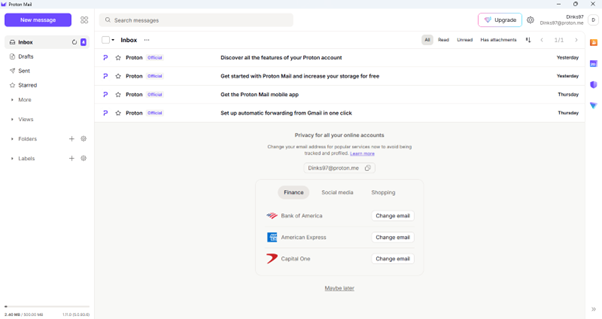
GROUP AD

Email application

Proton Mail

Introduction 

Email clients or email applications are software programs that facilitate the user to open and manage email accounts. The email applications run locally on computers, laptops or even mobile devices unlike the webmail services which are run via browsers. They offer convenient user-friendly platform on how to write, read, arrange, and store emails. Such applications commonly have the ability to handle multiple email accounts, which helps users to work with personal and professional email accounts using the same platform.

Similarities are spam filtering, calendar integration, contact management and security measures such as encryption. Common ones are Microsoft outlook, Apple mail, thunderbird and mobile apps such as Gmail and outlook mobile. The tools are essential to businesses that want to have efficient email handling, integrate with productivity suites, and improve its security features.

Email application background information

Generation 1

Standard Email (e.g., Gmail, Yahoo, Outlook)

How it works
These are highly convenient services, but technically the provider (Google or Yahoo) possesses the key to your mail box.
The Risk
Due to the ability of the provider to access your mail, your information may be scanned with advertisements or it may be compromised in case the company is compromised or a legal warrant is issued
Generation 2

Encrypted Email (e.g., Proton Mail)

How it works
It is the generation of Security Technology. It involves End-to-End Encryption (E2EE).
The Risk
The message is encrypted in the device of the sender and it can be decrypted just in the device of the recipient. The content in it cannot even be viewed by the service provider (Proton).

Manual Installation

Step 1
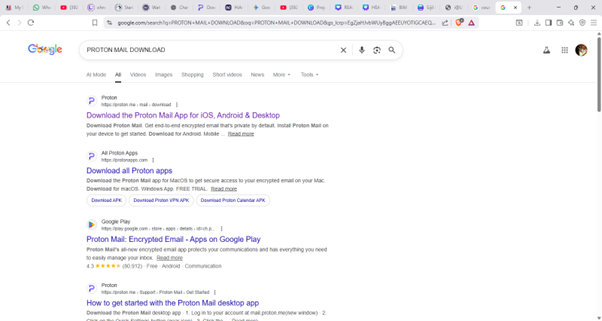
Search “Proton Mail Download” in browser

Step 2
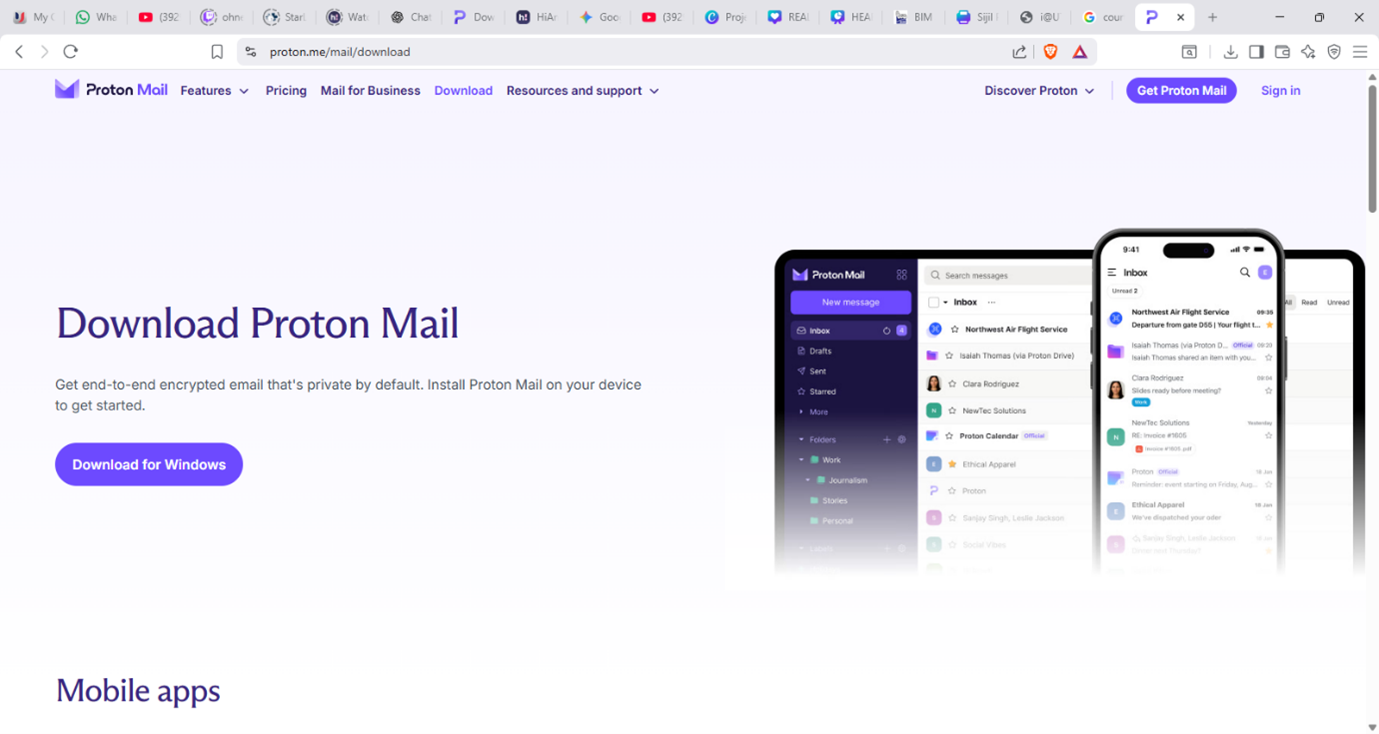
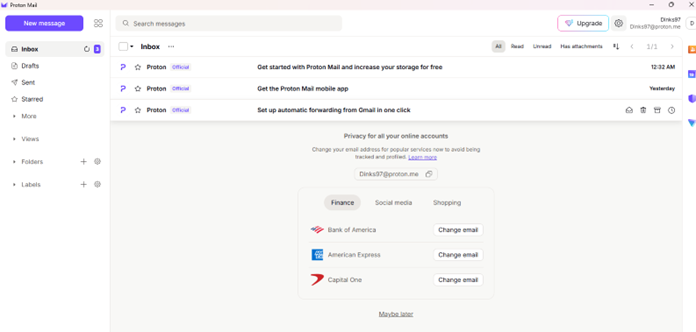
Download Proton Mail in desktop

Step 3
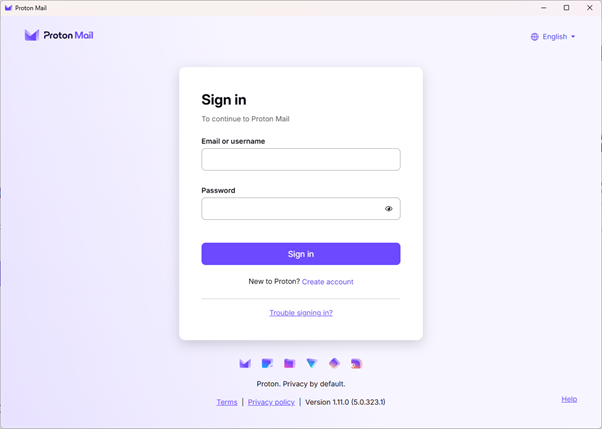
New users should launch Proton Mail and select 'Create account' to sign up first

Step 4
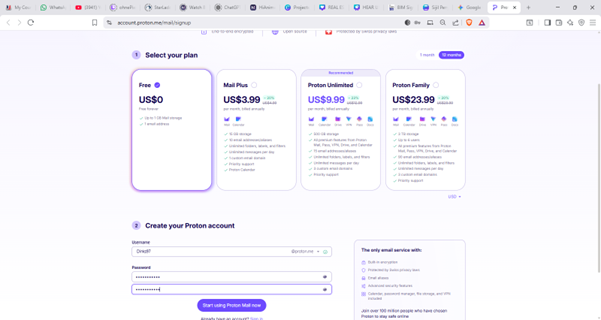
Choose Free plan and Create Proton account at the bottom, then click “Start using Proton Mail now”

Step 5
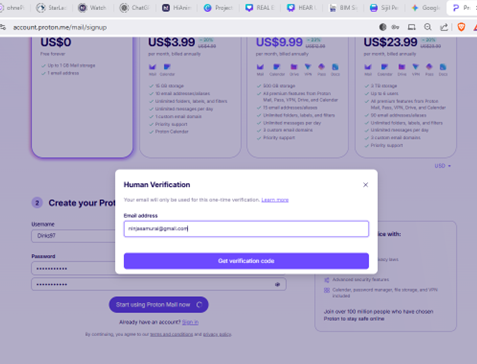
Enter gmail or yahoo account for Proton Mail to send verification code, then click “Get verification code”

Step 6
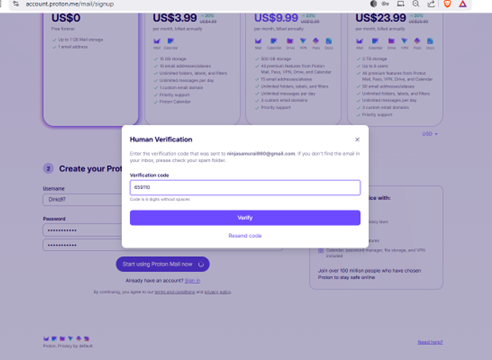
Enter the verification code sent to Gmail or Yahoo account, then click 'Verify’

Step 7
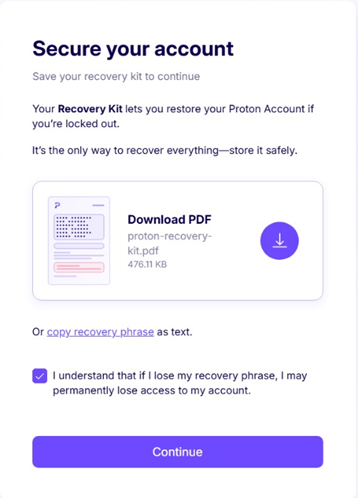
Download your Recovery Kit PDF now. This is the only way to recover your account if you lose your password or 2FA device
demonstration 1

Enhanced Privacy: Password Locking & Message Expiration

Step 1

Search “Proton Mail Download” in browser

Step 2

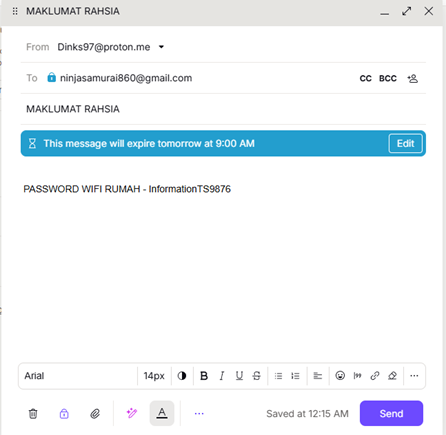
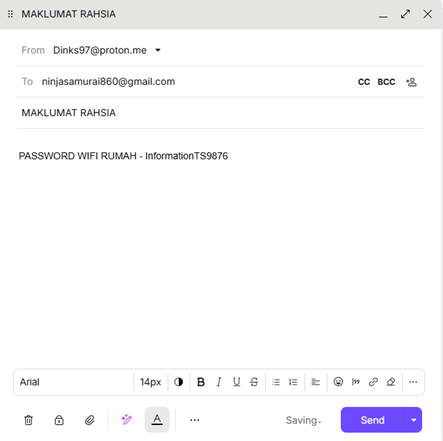
Enter the recipient’s email, the subject, and your message. Then, click the Lock icon at the bottom to protect the message with a password

Step 3

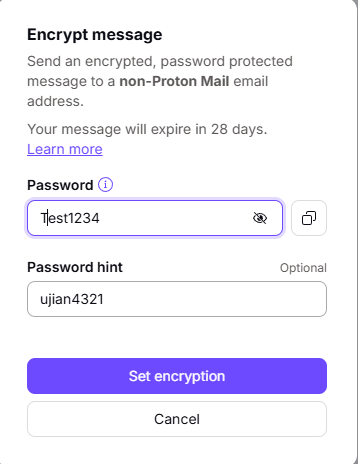
create a password to encrypt the messasge , then click set encryption

Step 4

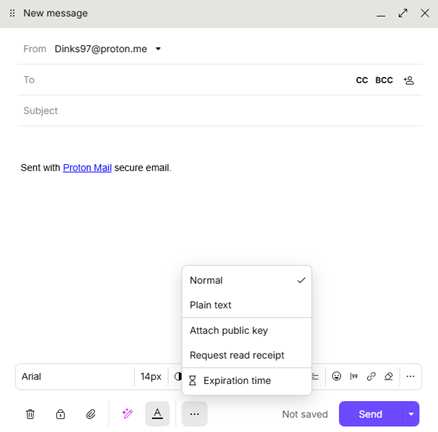
Click the three dots icon and set an 'Expiration time' to have the message automatically deleted from both inboxes after the specified duration

Step 5

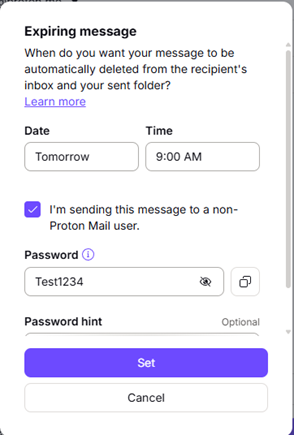
Set The date and time and then click set

Step 6

Click Sent at bottom right

Step 7

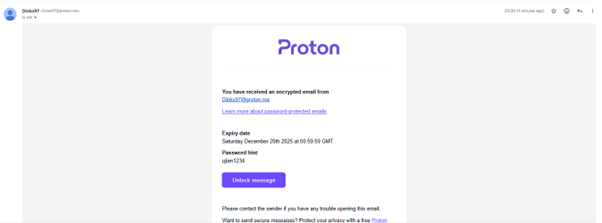
Once the recipient opens the email, it will look like the image below. Recepient must click 'Unlock message' to view the secure content

Step 8 

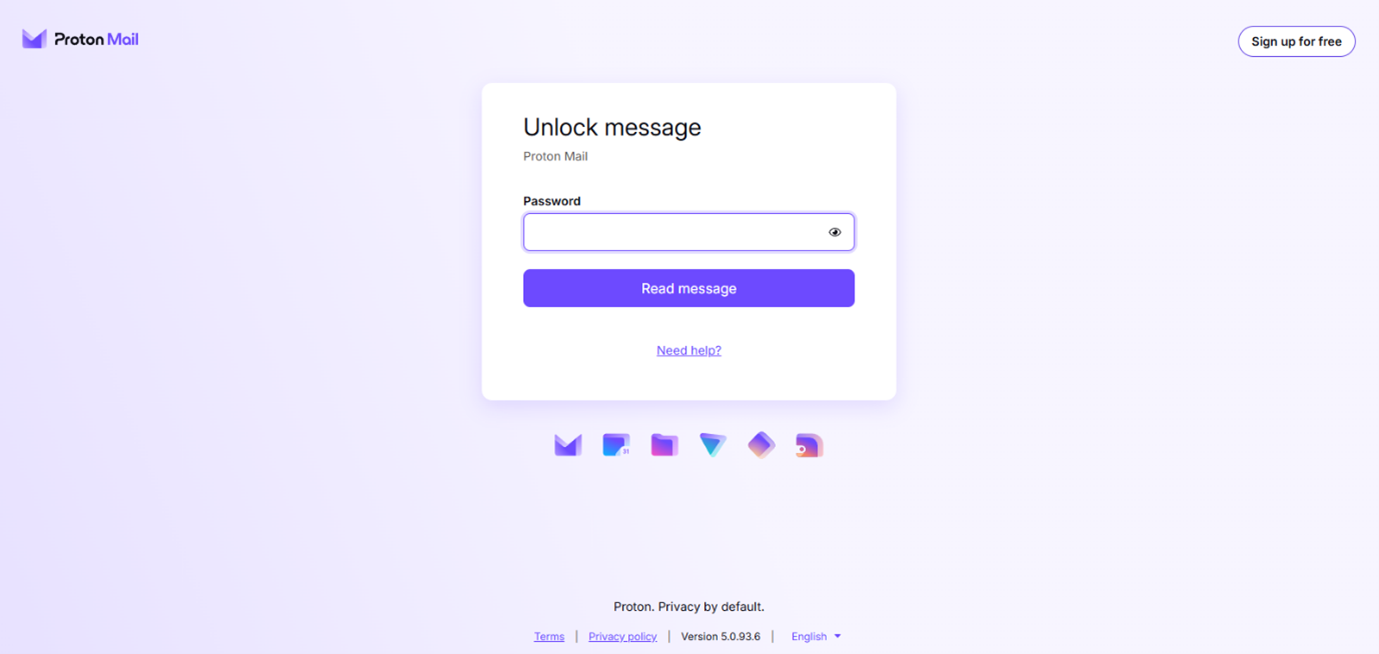
Enter Password that being set by the sender before can read the message

Step 9

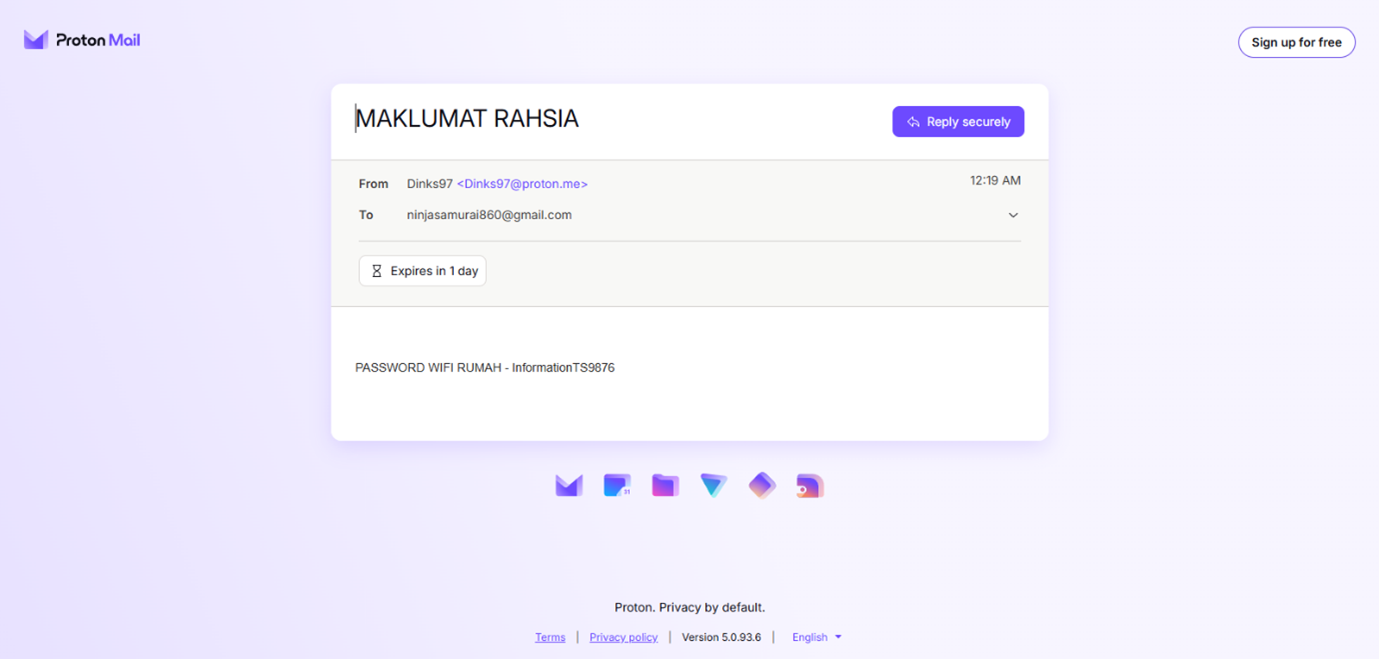
Now Recepient can read the hidden messaage and the message will disapppear after 1 days

demonstration 2

Enable Two-Factor Authentication (2FA)

Step 1

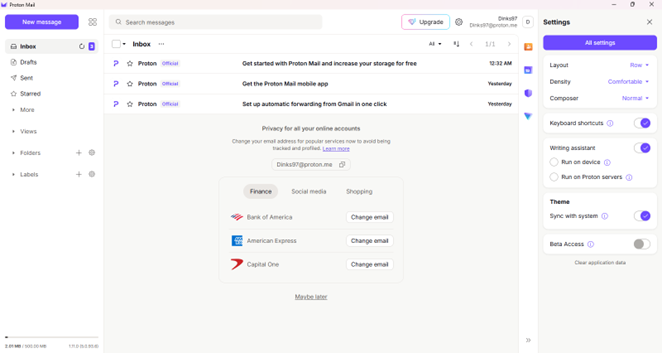
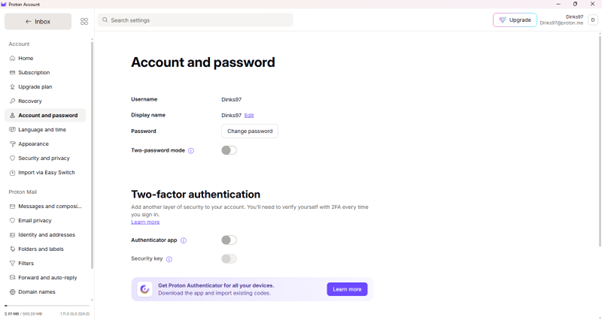
Launch Proton Mail and Click Setting Icon , then click all setting

Step 2

Choose “Account and password” and turn on Auntheticator app at Two- factor authentication.

Step 3

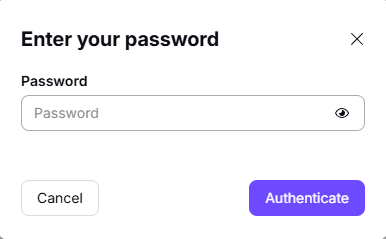
Enter password and then click authenticate

Step 4

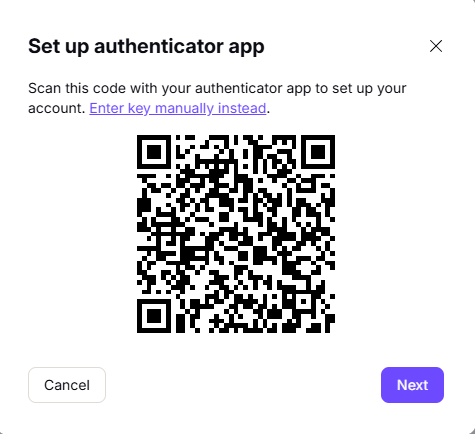
Proton mail will give Qr code to scan or enter key manually .

Step 5

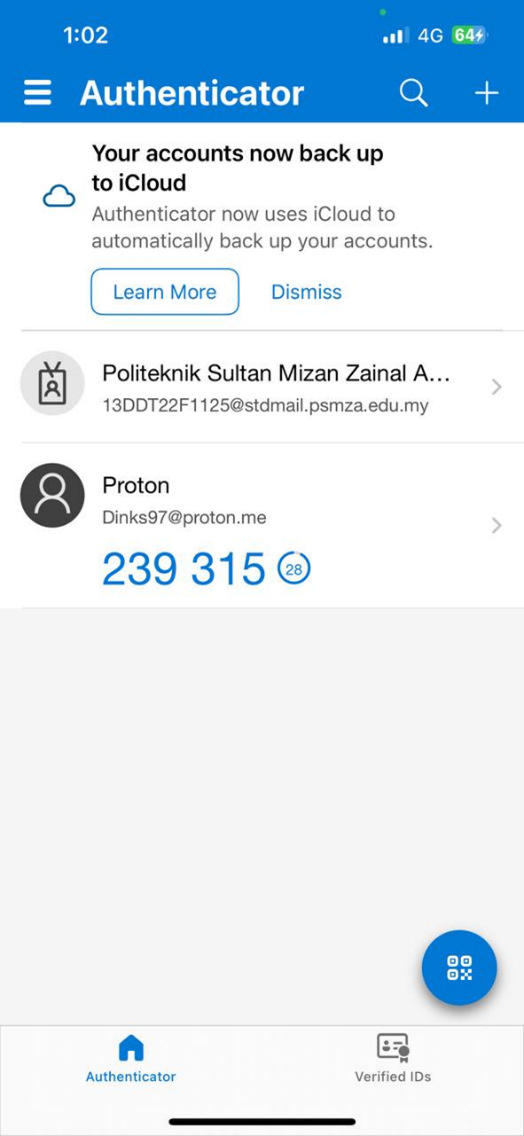
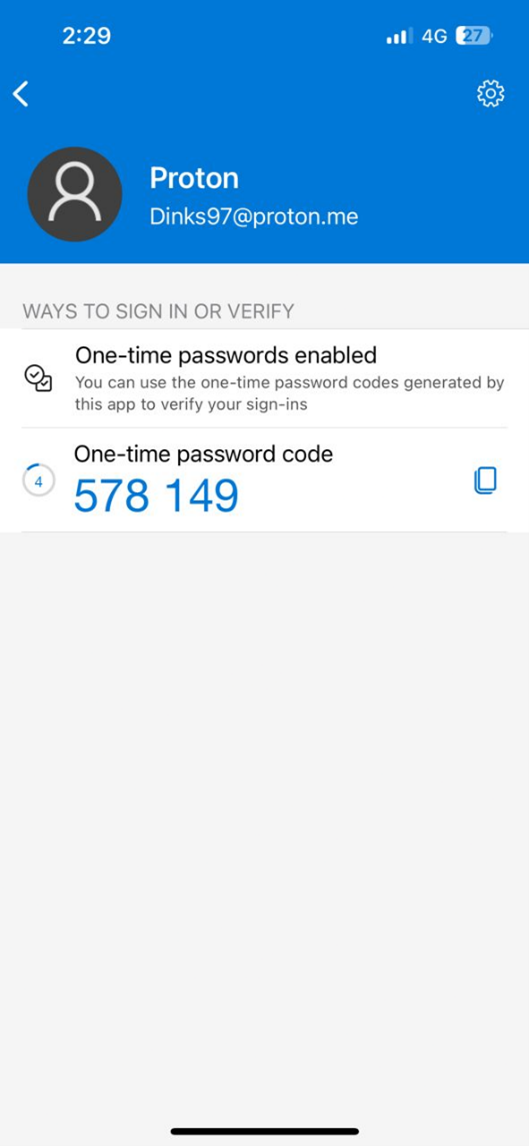
Download Authenticator by micrososft in Phone. Open Authenticator and click icon Qr at bottom tight. Scan Qr code that given by Proton Mail

Step 6

A verification code will appear; however, for security purposes, the code resets every 60 seconds

Step 7

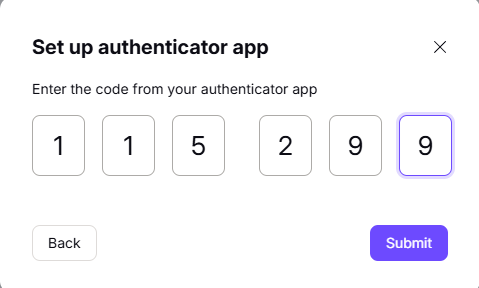
enter the password code in given in phone and then click submit.

Step 8

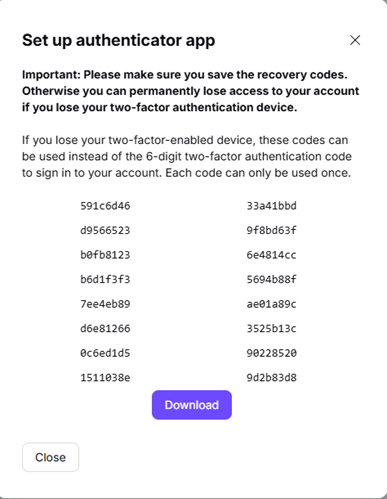
Ensure download the recovery kit. Because of Proton's encryption, losing 2FA device without having these codes means your account is lost forever.

demonstration 3

How to recover Account if forgot password

Step 1

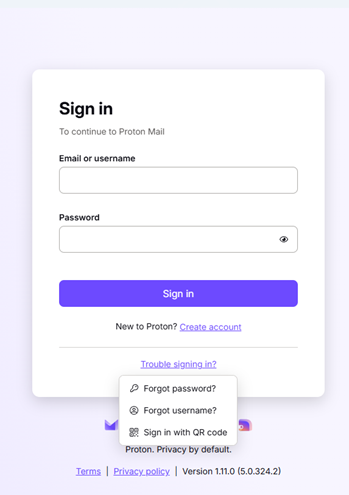
Click 'Trouble signing in?' followed by 'Forgot password' to begin the account recovery process.

Step 2

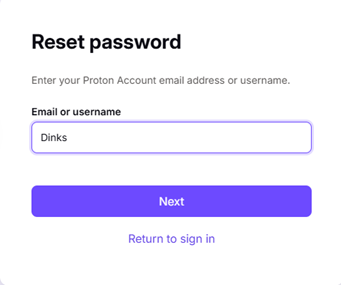
Enter username and then click next

Step 3

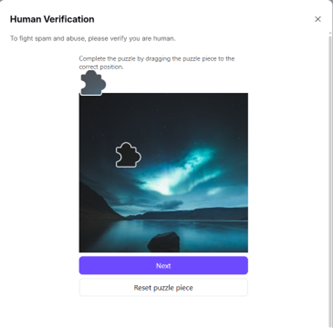
Complete the human verification (CAPTCHA) to proceed with your account setup.

Step 4

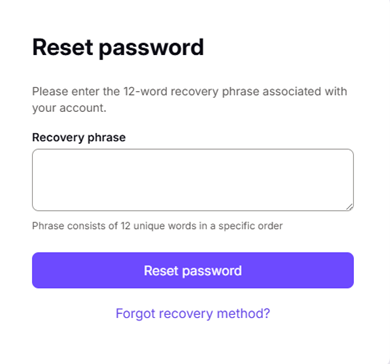
Enter the recovery phrase provided by Proton Mail during your initial sign-up, then click 'Reset password’

Step 5

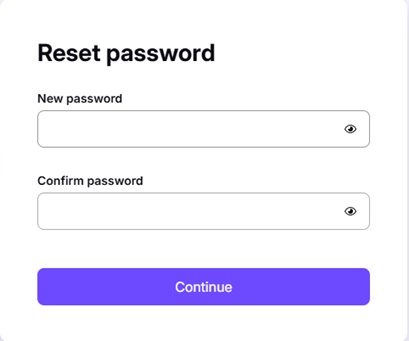
Create new password and click continue

Step 6

Once the recovery is complete, you can use Proton Mail as usual with your new password

Confidentiality, Integrity, and Availability (CIA) Analysis

Confidentiality
1. The messages exchanged between Proton users remain encrypted until your gadget or computer receives the message and then the subsequent messages are forwarded to the receiver.
2. Hide-my-email Aliases: Identity security allows you to use special Aliases to ensure that your actual email address will not be tracked by a third party.
INTEGRITY
1. Transparency: Proton apps are all open source and will be audited by third parties to confirm that there are no backdoors in the code.
2. Digital Signatures (PGP): Each email is cryptographically signed in order to verify that there has not been any manipulation of the content on its way to the receiver.
AVAILABILITY
1. Offline Mode (New 2025): You are able to read, search and compose emails without having an active internet connection in what is known as a major update.
2. Proton Sentinel: This is a sophisticated protection system which makes use of AI and 24/7 surveillance to avert account intrusions and unauthorized access
GROUP AD - BITS3423 INFORMATION TECHNOLOGY SECURITY