GROUP AD

Encryption Tools

7-zip

Introduction

Security tools that are utilized to ensure the safety of digital data against unauthorized access include encryption tools. They operate through the transformation of readable data (plaintext) to an unreadable one (ciphertext) via an encryption algorithm and a password or key. The decryption and access of the original data are restricted to authorized users with the right credentials only. Encryption assists in the maintenance of data confidentiality and is largely applied to the protection of files, storage devices, and data transfer.

Encryption Tools background information

With the ever growing digital storage and file sharing, sensitive data like personal papers, academic documents, and company records are becoming vulnerable of being accessed by unauthorized individuals. This has rendered encryption a very important security tool in the current computing systems.
The 7-Zip is a popular open-source file compression utility, which has a strong encryption feature. It also allows encryption of AES-256 that is a universally accepted and secure encryption standard. The 7-Zip program is easily used, freely available, and easy to install and is usually used by individuals and organizations to safeguard files and enhance the level of data security.

Manual Installation

Step 1

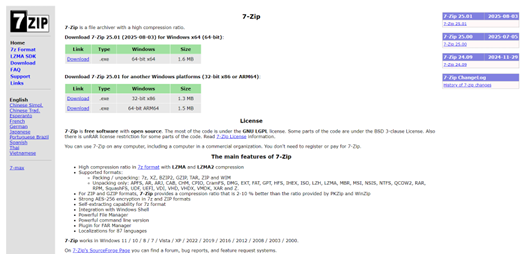
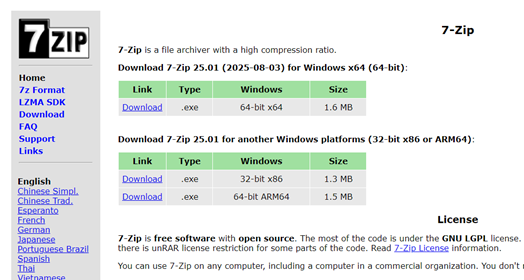
1. Open a web browser such as Google Chrome and go to 7-Zip official website

Step 2

2. Download the version that is suitable for your system. In this case, my system is 64-bit. Click the blue Download link

Step 3

3. Open the 7-Zip installer file

Step 4

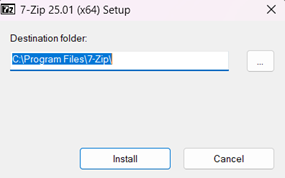
4. Choose the installation location for the application. Click Install and wait for the installation process to complete

Step 5

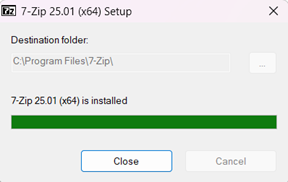
5. After the installation is completed, click Close.

Step 6

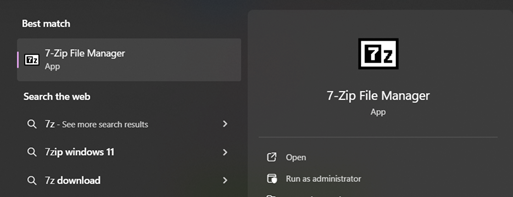
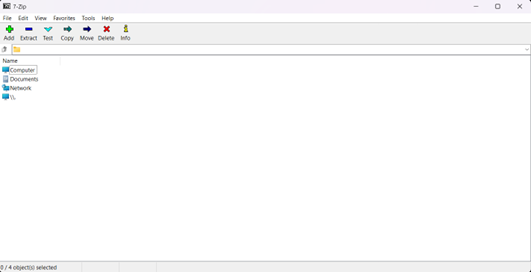
6. Open Start Menu and search for 7-Zip File Manager. Click Open.

Step 7

7. If the application launches successfully, it means that 7-Zip has been successfully installed

demonstration

Step 1

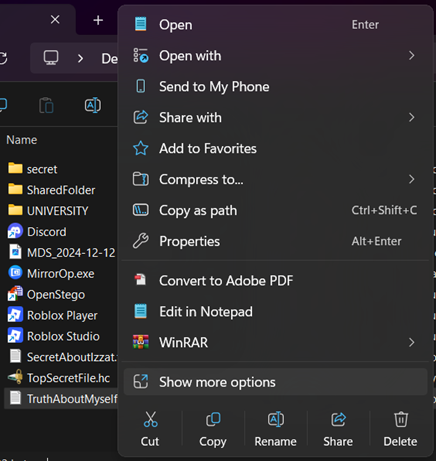
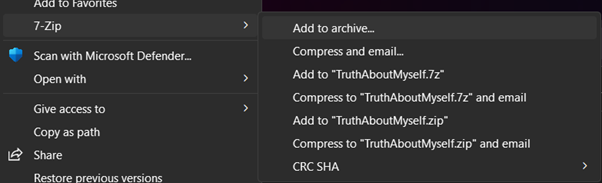
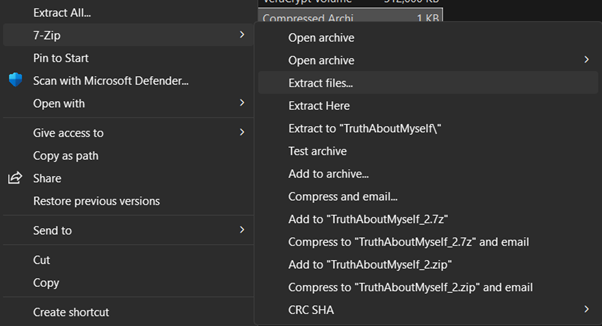
1. Choose the file that you want to protect. Right-click on the file, select Show more options, click 7-Zip, and then select Add to archive.

Step 2
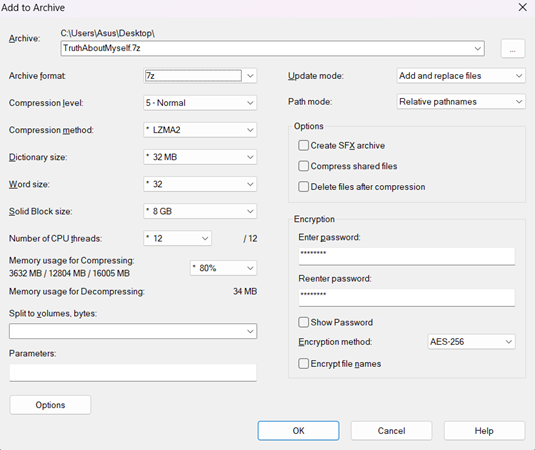
2. A window Add to Archive will appear. Make sure the Archive format is “.7z”. Under Encryption section, enter password and also re-enter the password again. For Encryption method select AES-256. Double check all settings and click OK. The .7z will be created at the path as shown at the top of the window.

Step 3

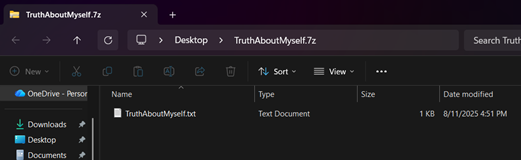
3. An encrypted archive file with the .7z is created. Original file contents are now protected.

Step 4

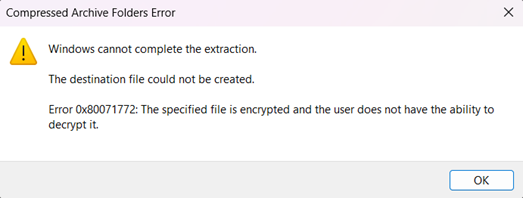
4. To verify whether the encryption process works, try to double click the .7z encrypted file. An alert window will pop up, meaning that when you attempt to open without a password, you cannot access to the encrypted file.

Step 5

5. To decrypt the file, right-click on the .7z file, select Show more options, click 7-Zip, and choose Extract files.

Step 6
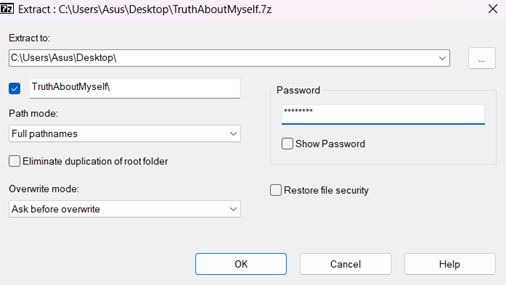
A window will appear asking for a password. Enter the password that was created during the encryption process and click OK.

Step 7
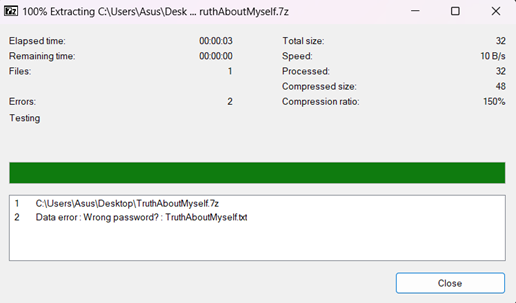
7. If no password or an incorrect password is entered, an error message will appear stating that the password is wrong. This shows that without the correct password, the encrypted file cannot be accessed or extracted.

Step 8

8. After entering the correct password, the file will be successfully extracted. You can now access and open the file, which means the file has been successfully decrypted.
Confidentiality, Integrity, and Availability (CIA) Analysis

Confidentiality
The 7-Zip provides confidentiality, which is achieved by encrypting files with the AES-256 encryption and password protection. This helps to avoid the infiltration of the file contents by wrong users without appropriate password.
INTEGRITY
The 7-Zip assists in the maintenance of data integrity, that is, the encrypted files can not be altered without any issue. Any unauthorized modifications to the encrypted archive will either cause failure in extraction or corrupted information.
AVAILABILITY
The availability supported by 7-Zip is that of the authorized users to access and extract the encrypted files at any time with the use of the
GROUP AD - BITS3423 INFORMATION TECHNOLOGY SECURITY